I’ve been having problems with roaming on my home network. Any time I’m on a Zoom call and wondering around the house when I transition from one room to the other my call cuts out for about 3 seconds. Its not a big deal most of the time but I decided I wanted to look into. After doing some radio optimizations and still having the issue I dug a little deeper. Everything I read mentioned that WPA2 or WPA in general is not ideal for roaming. This is because the device must re-authenticate with each AP every time it needs to move. This authentication cycle takes enough time to make the call cutout for a couple seconds. Okay, so deploy 802.1X. 802.1X can be configured for fast roaming. The UDM-Pro and maybe any Unifi controller can act as a RADIUS server itself but it has limited functionality and I use FreeRadius in other places.
I have a UDM-PRO and 3 access points in my house. First things first, give the APs a static IP address. The server must be explicitly configured for each client so having a static IP address is almost mandatory. You can work around this by allowing entire networks to connect as clients but this is less secure.
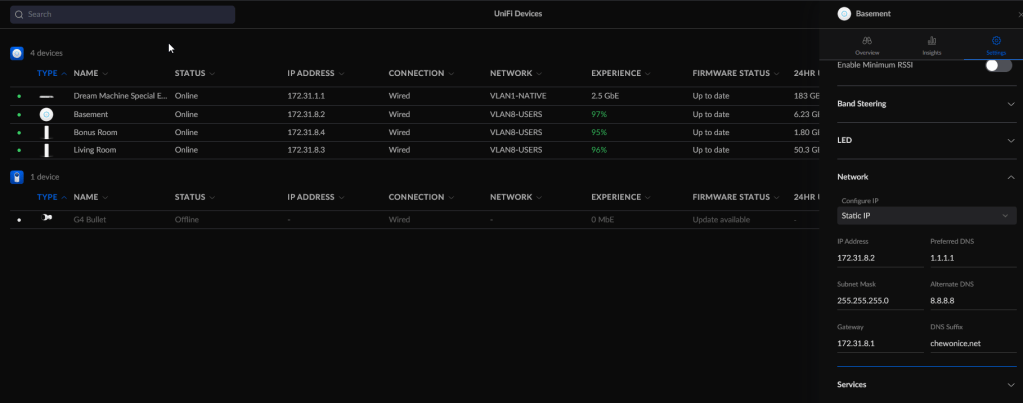
Next we need to create a RADIUS profile. In this profile you must specify the FreeRadius server IP address as both an Authentication and Accounting server. Create a shared secret and make it the same for both Authentication and Accounting. Check at least the box for Wireless Networks.

Create a new Wifi Network. Give it a name, ignore the password field and scroll down to “Advanced Configuration”, “Manual”. Set the ‘Network’ to anything you would like. FreeRadius will control which VLAN get assigned.
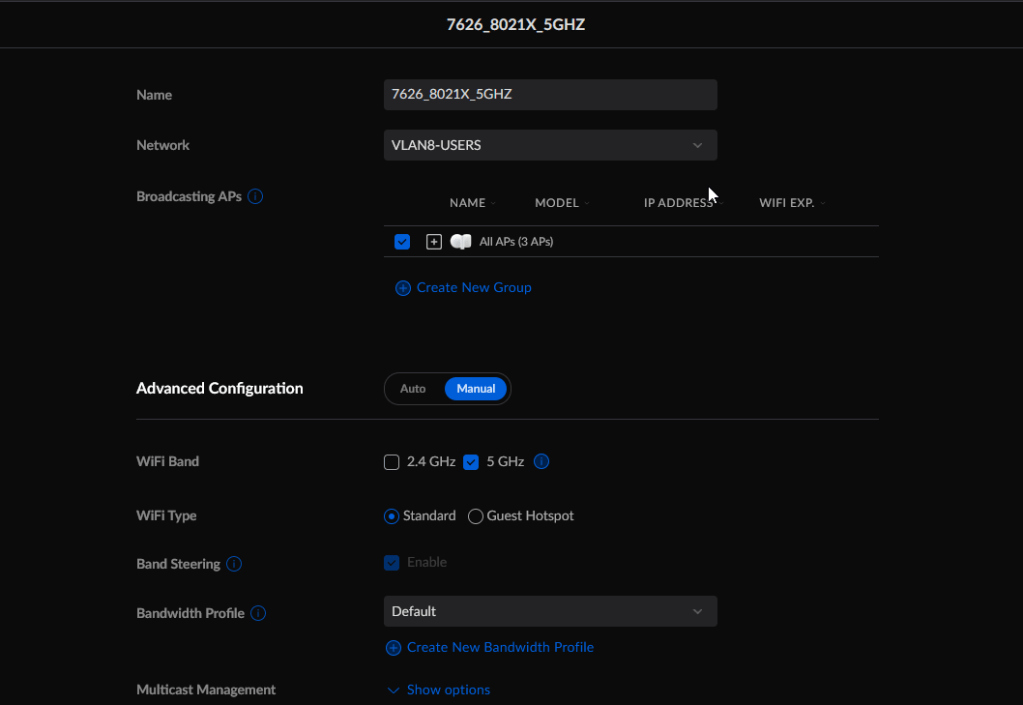
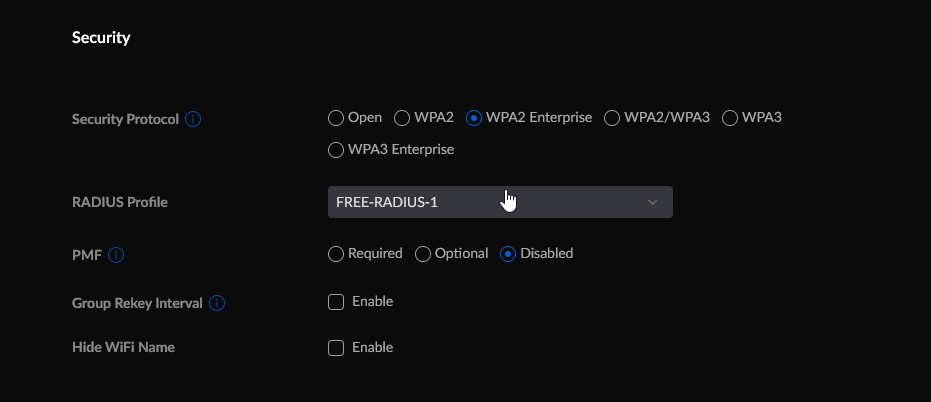
Under security select WPA2 Enterprise, select the RADIUS Profile you created and save the configuration.
I am running FreeRadius 3.2.x on Ubuntu 22.04. Here is how I set it up. Because I am installing this from source the file paths and folder names are a little different than you might see in other documentation. If you are also referencing other documentation where I reference /usr/share/etc/raddb/ they probably reference /etc/freeradius/ and when I use the command radiusd -X, they probably use freeradius -X.
sudo apt install gcc libssl-devlib talloc-dev make -y
git clone https://github.com/FreeRADIUS/freeradius-server.git
cd freeradius-server
git checkout v3.2.x
./configure
make
sudo make install
Once installed run radiusd -X to start the server in debugging mode. Ctrl-c to exit.
Now you need to configure your APs as clients to the server. To do this, edit the file /usr/local/etc/raddb/clients.conf and add client entries similar to these.
client basement {
        ipaddr = 172.31.8.2
        secret = hahahahaha
}

client livingroom {
        ipaddr = 172.31.8.3
        secret = hahahahaha
}

client bonusroom {
        ipaddr = 172.31.8.4
        secret = hahahahaha
} 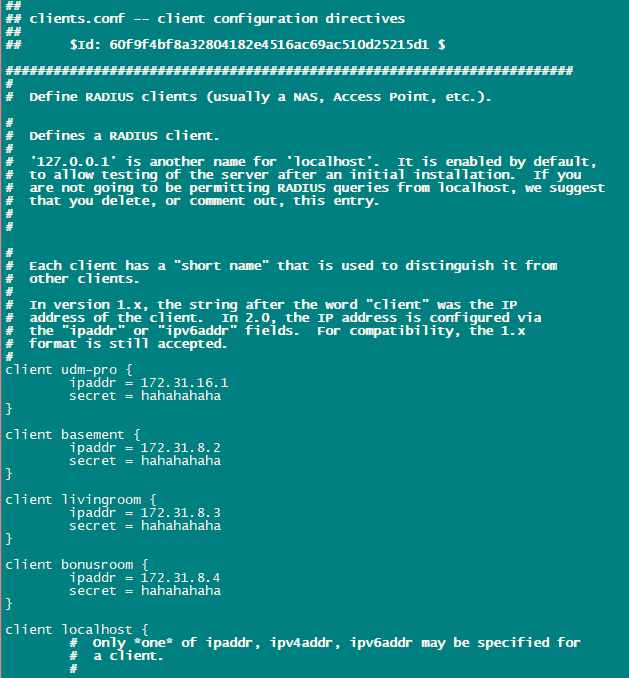
These client entries allow the APs to communicate with the server.
Now we need to configure FreeRadius to send the information back to the clients in a manner that Unifi understands.
Edit /usr/local/etc/raddb/mods-enabled-eap We need to change 3 configuration lines.
#Under eap
default_eap_type = tls       # Default is MD5
...
#Under ttls
use_tunneled_reply = yes     # Default is no
...
#Under peap
use_tunneled_reply = yes     # Default is no
Next we need to create a user. For this we will just use the local user text file. Other external methods such as AD can be used but that is out of the scope of this.
Edit the file /usr/local/etc/raddb/mods-config/files/authorize and add an entry to the top of this file. We will create the user named testing and give them a password of password. We also need to define the three options which allow for RADIUS VLAN assignment. Tunnel-Type = VLAN, Tunnel-Medium-Type = IEEE-802 or 6, Tunnel-Private-Group-Id = 8. Group-Id is the VLAN ID you wish to drop the user into.
testing Cleartext-Password := "password"
        Tunnel-Type = VLAN,
        Tunnel-Medium-Type = 6,
        Tunnel-Private-Group-Id = 8
radiusd -X
FreeRadius provides a lot of debugging information in this output so I’ll try to trim it down to what is important. FreeRadius shows you all the places its looking for your user and the different variations of the username that its looking for.
...
Ready to process requests
...
(1) Received Access-Request Id 5 from 172.31.8.2:45184 to 172.31.16.30:1812 length 234
(1)   User-Name = "justin"
(1)   NAS-IP-Address = 172.31.8.2
...
(10)   Tunnel-Type = VLAN
(10)   Tunnel-Medium-Type = IEEE-802
(10)   Tunnel-Private-Group-Id = "8"
...
(11)   Acct-Status-Type = Start
(11)   Acct-Authentic = RADIUS
(11)   User-Name = "justin"
(11)   NAS-IP-Address = 172.31.8.2
(11)   Framed-IP-Address = 172.31.1.154
...
(12)   Acct-Status-Type = Interim-Update
(12)   Acct-Authentic = RADIUS
(12)   User-Name = "justin"
(12)   NAS-IP-Address = 172.31.8.2
(12)   Framed-IP-Address = 172.31.8.154
You’ll likely get a certificate warning unless you’ve setup an internal CA and cert for EAP.
You should now be connected to your 802.1X Wifi Network and authenticated against the local file on the FreeRadius server.
 Work, and stuff
Thank you very much for the short and precise instructions. It works well on a single AP in the lab but we can’t get it to work in a multi-VLAN productive environment where the 10 different VLANs are assigned to different SSIDs depending on the location on campus. Any suggestions where we could be mistaking? Thanks for your help.
LikeLike
I don’t know for sure but I image you have to capture some other bit of information. Call-Station-ID comes to mind. The logic would be if I am X user on Y access point, drop me in this VLAN. This seems to be what you might be looking for. http://wifinigel.blogspot.com/2014/03/the-microsoft-network-policy-server-nps.html
LikeLike
Thank you very much for the link. I will study it carefully. My problem is that there are 6000 students (2000 concurrent users max) in different locations of the campus. So the VLAN ID must depend on the AP or the building where the AP is to limit broadcast traffic to a minimum. Not user based, but sort of SSID based VLAN ID.
LikeLike
Thanks for the tutorial, I still have two question, the session-timeout works with that settings? You are able to disconnect or block user using Freeradius commands? The UDM accepts the inputs?
LikeLike